MoRTH, GoI SUPPORTED INITIATIVE
सुरक्षा
और
सम्मान की
राह
Suraksha aur Samman Ki Raah
They power India’s growth. We power their journey.
Empowering Truck Drivers with road safety, health, clear vision, and dignity
ensuring a secure journey and the respect they deserve.
Preventive
Health Care
Eye Care &
Vision Correction
Behavioural Change
for Road Safety
Social Security
Linkages
Technology
Driven
Digital
Inclusion
Findings – Pilot Cohort

ABHAY SAARTHI
Live Impact Dashboard
Numbers that tell the story
continuously as our teams operate on the ground.
Total Registered Screening
35% of Phase 2 target
Total Eye Testing Conducted
65% vision coverage achieved
Total Spectacles Dispensed
50% of vision-corrected drivers
Social Security Linkages
25% e-Shram + Ayushman linked
ABOUT ABHAY SAARTHI
A companion of Truck Drivers for their wellbeing and road safety.
“Suraksha aur Samman ki Raah” — Journey with safety & dignity for India’s invisible workforce.
Empowering the people who keep India moving.
Every day, millions of Truck Drivers connect farms to markets, factories to cities, ports to airports and businesses to communities. Yet many travel long distances without access to basic healthcare, vision care, or social security for them and their families.
India has made significant investments in road infrastructure and vehicle safety. Yet road accidents continue to take a devastating toll — and the human factor, particularly the condition of the driver, remains critically under-addressed.
The Abhay Saarthi Program is designed and developed by the Centre for Rural Development and Technology (CRDT), IIT Delhi, in collaboration with Foresight Foundation. The program is supported by the Ministry of Road Transport & Highways (MoRTH), Government of India.
The program is built on the principles of collaboration, bringing together government, academia, community organisations, and industry to advance a shared mission—improving driver well-being, enhancing road safety, and supporting sustainable livelihoods.
The program is founded on the belief that the human element is the most critical factor in road safety. When drivers thrive, roads become safer, supply chains become stronger, and the economy becomes more resilient.
Abhay Saarthi is more than a program. It is a commitment to ensuring that the Truck Drivers who keep India moving are seen, supported, and empowered.
🇮🇳
Healthy drivers. Safer roads. Stronger India.
Why Truck Drivers?
India's freight sector is heavily reliant on road transport, with nearly 66% of freight movement taking place via road networks.
Truck Drivers are the backbone of freight movement, yet long working hours, irregular shifts, extended periods away from family, and limited access to healthcare have contributed to a silent health crisis.
Driver health is directly linked to road safety. Untreated vision problems, uncontrolled blood pressure, and chronic fatigue can significantly increase safety risks on the road.
Making the profession safer, more dignified, and aspirational is essential—not only for today's drivers but also for attracting the next generation that will keep the nation moving towards its India@2047 goals.
The pilot phase demonstrated that the integrated Abhay Health Camp model is operationally feasible, repeatable, and capable of delivering measurable outcomes at scale leading to drivers’ well-being and improved road safety
50,713
Truck Drivers Screened
93.7%
Vision Correction Rate (Spectacles Dispensed On-site)
51.5% - 86.2%
Increase in Social Security Coverage
*502 Cr+
Cumulative Insurance Unlocked for families
62,700+
Family Members Covered Under Insurance
*502 Cr+
Cumulative Insurance Unlocked (families)
62,700+
Family Members Insurance Covered
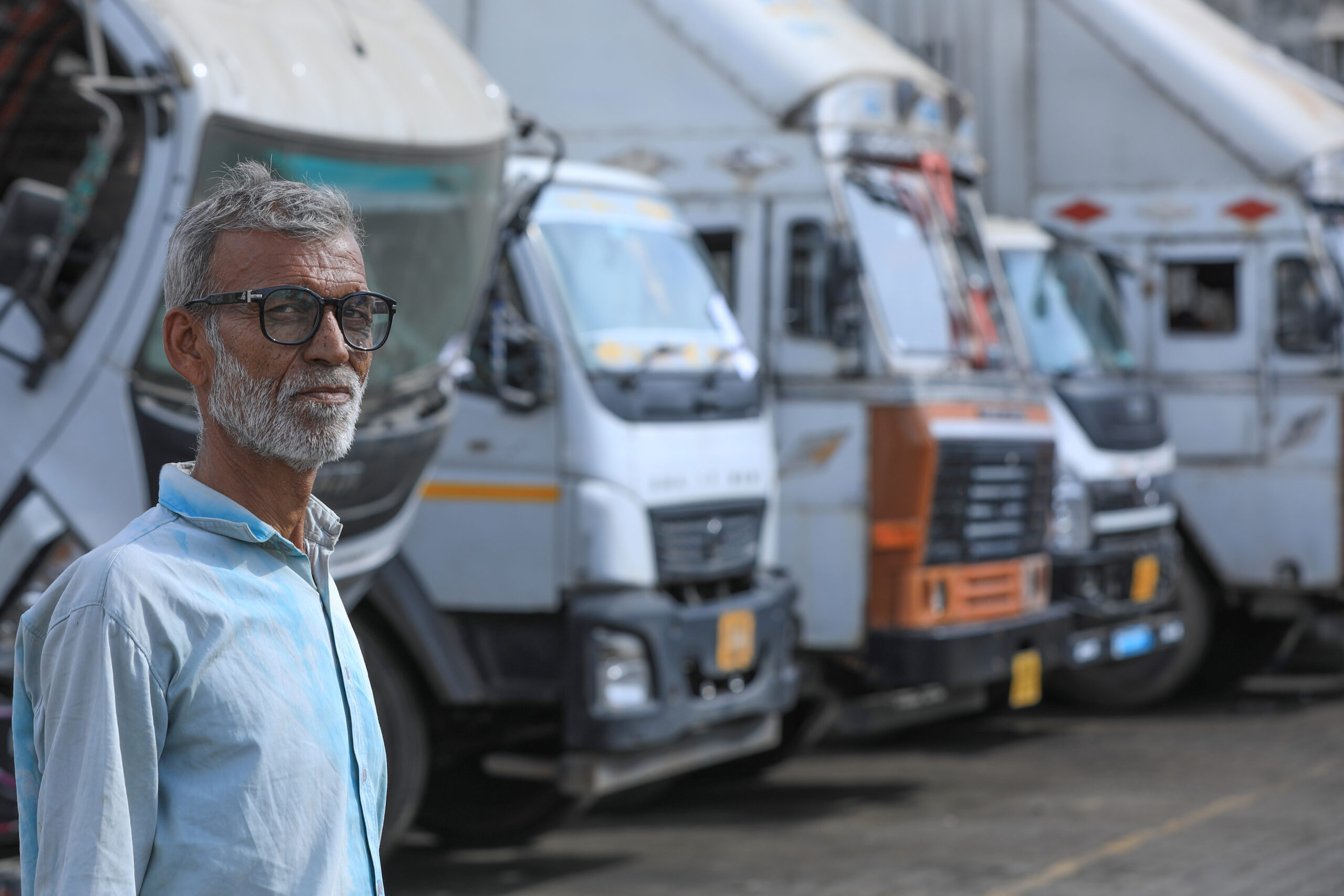
Deepu Kumar Yadav
Story 1: Deepu Kumar Yadav — Bengal · Indore–Guwahati Route
“Now I can read road signs clearly. The camp saved me — and my family.”
— Deepu Kumar Yadav, Truck Driver
Meet a Driver
VOICES FROM THE ROAD
Stories that travel further than any highway.
Behind every statistic is a life transformed.
Deepu spends 2–3 months at a stretch on the Indore–Guwahati route. Like thousands of India’s Truck Drivers, he had never had his eyes checked. He simply assumed that was normal. During a routine halt at the Project Abhay camp in Indore, he received a comprehensive health check-up. The eye exam was the turning point.
Corrective spectacles, dispensed free on the spot, changed how he sees the road. More importantly, they changed how he feels about himself — as a professional, and as a father. Deepu now hopes Project Abhay can reach every driver on every route in India. “These camps,” he says, “are what we have been waiting for.”
Free
dispensed on the spot
e-Shram
social security registered same day
Ayushman
Featured Story
Meet Roopanjali Verma — one of India's few female heavy vehicle drivers, and an Abhay Saarthi story of strength.
Abhay on the Move
Millions of Truck Drivers power India’s economy & Abhay Saarthi is
becoming a true companion for them on India’s highways
Why It Matters
One camp visit. Four life-changing outcomes.
Healthy drivers. Safer roads. Stronger India.
India’s more than 3.6 million Truck Drivers keep the country’s supply chains
moving. Their health directly impacts road safety for everyone.
of India’s Truck Drivers have compromised vision — yet most have never had an eye test. Abhay Saarthi rectified 93.7% of refractive errors on the spot, in a single camp visit, with free spectacles.
Source: Project Abhay Pilot Phase Findings. All outcomes lead to Road Safety.
55.1%
Drivers with compromised vision
93.7%
Vision corrected on the spot
27.74%
Distance vision correction out of total drivers
95.1%
Distance vision correction out of total drivers
Drivers with corrected vision report 4 times fewer difficulties reading road signs, judging distance, and navigating at night. India accounts for 11% of global road fatalities despite having 1% of the world’s vehicles. Poor driver vision is a critical but solvable factor.
11%
1%
India’s share of the world’s vehicles
68%
Drivers had never had a vision test before
4×
Fewer road difficulties post-correction (reported)
of Truck Drivers have borderline or above BMI. 57.4% show elevated blood pressure. 18.4% show borderline or high blood sugar. 33.9% report moderate stress. Abhay Saarthi is addressing all four thanks to robust & holistic Abhay Health Camp design
Source: Project Abhay Pilot Phase Findings. All outcomes lead to Road Safety.
44.3%
Borderline or above BMI
100%
18.4%
Borderline or high blood sugar
100%
48.3%
of Truck Drivers had no social security whatsoever. In a single afternoon, drivers are registered for e-Shram, Ayushman Bharat, and others eligible insurance schemes.
Source: Project Abhay Pilot Phase Findings. All outcomes lead to Road Safety.
48.3%
75.3%
68.6%
Uninsured before camp visit
46.8%
Imagine driving like this
One Camp. One Pair. A Clearer Road Ahead.
55.1% of India’s Truck Drivers have compromised vision. This is what many of them see
every time they get behind the wheel.
Below is a before-and-after comparison of what a Truck Driver with uncorrected vision sees
versus what they see with Abhay Saarthi spectacles.


55.1%
Compromised Vision
More than half of all truck drivers screened in Phase 1 have a measurable vision problem. 93.7% corrected on the spot.
57.4%
High Blood Pressure
33.9%
Moderate-High Stress
68.6%
No Insurance at All
Almost 7 in 10 drivers have zero insurance. A single accident can devastate a family with no financial safety net.
18.4%
Borderline High Blood Sugar
44.3%
Overweight / Obese (BMI)
On the Ground
What happens at Abhay Camps
Every Abhay Health camp is a one-stop integrated model for healthcare, addressing refractive
errors, learning tips to stay fit and road ethics leading to positive behavioural shift, getting
social security cover for themselves & families, leaving camp with companion in the form of
driver app and Saarthi Saathi App.
Health
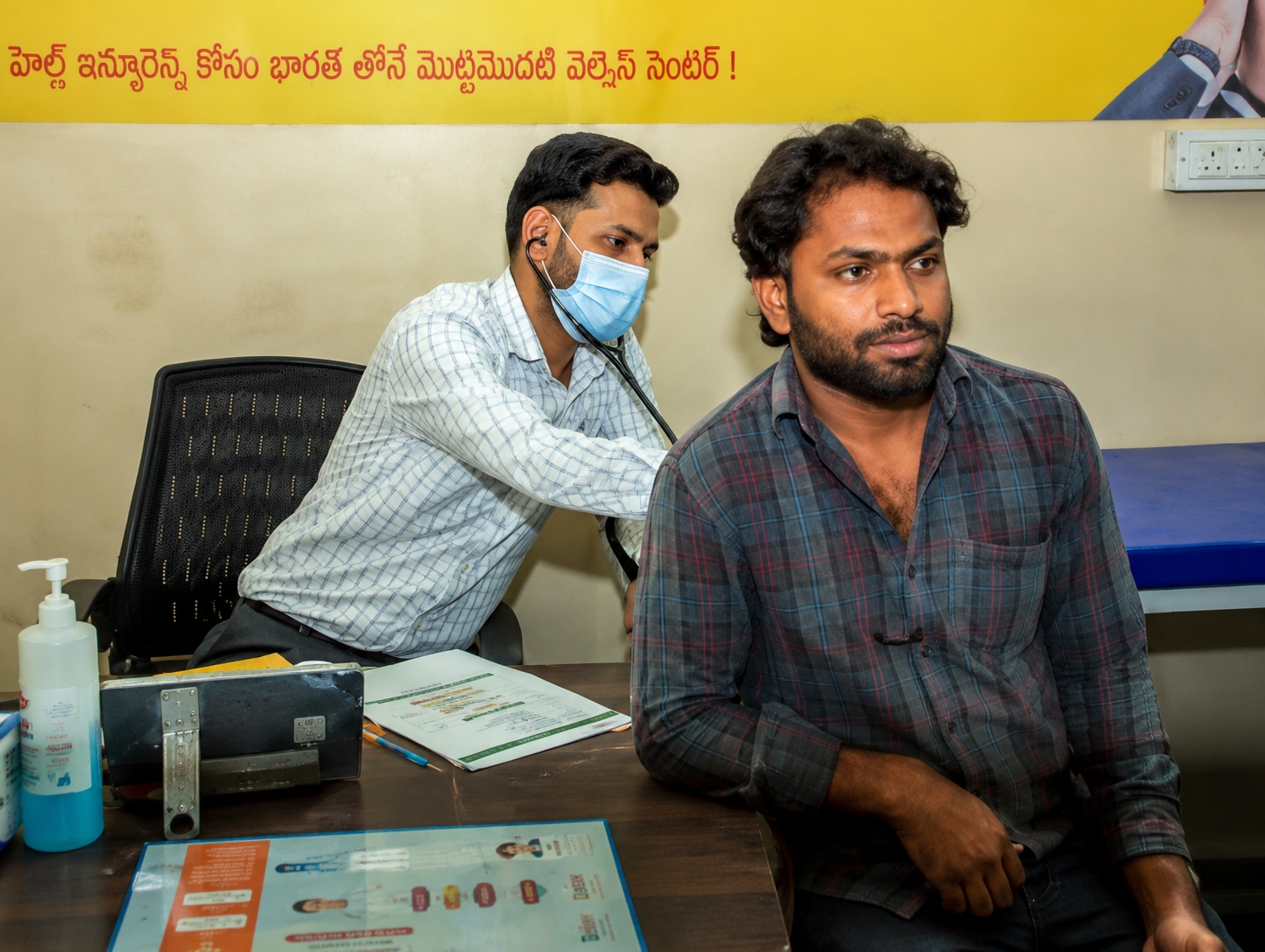
Health Check-up
BMI, BP, blood sugar, and mental wellness screening — all in one sitting. Early detection through preventive healthcare helps reduce the burden on the state healthcare system.

Vision
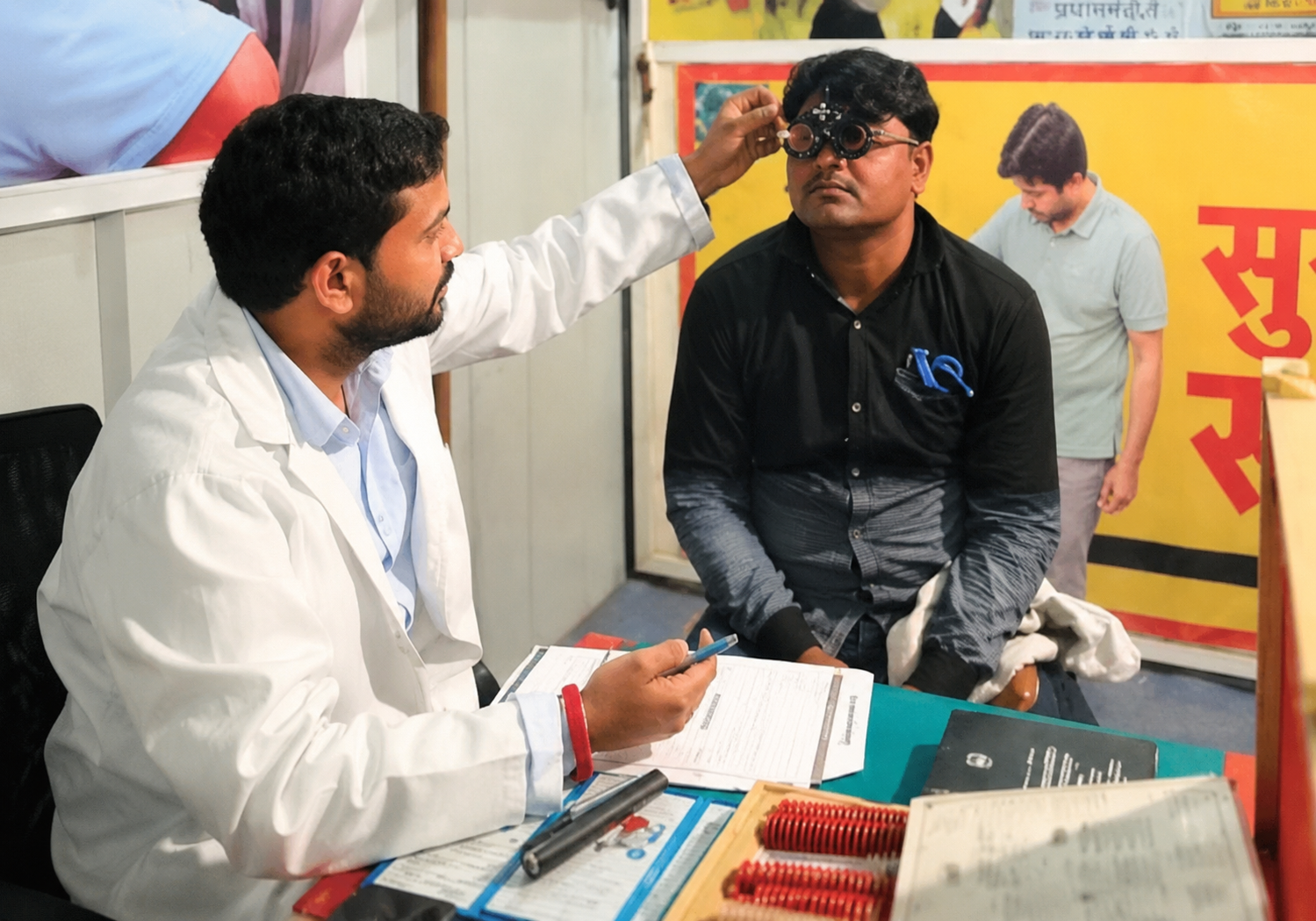
Eye Screening & Free Spectacles
Complete eye screening and assessment. Spectacles are dispensed free of cost on the spot through an innovative automated fitting station.
Social Security
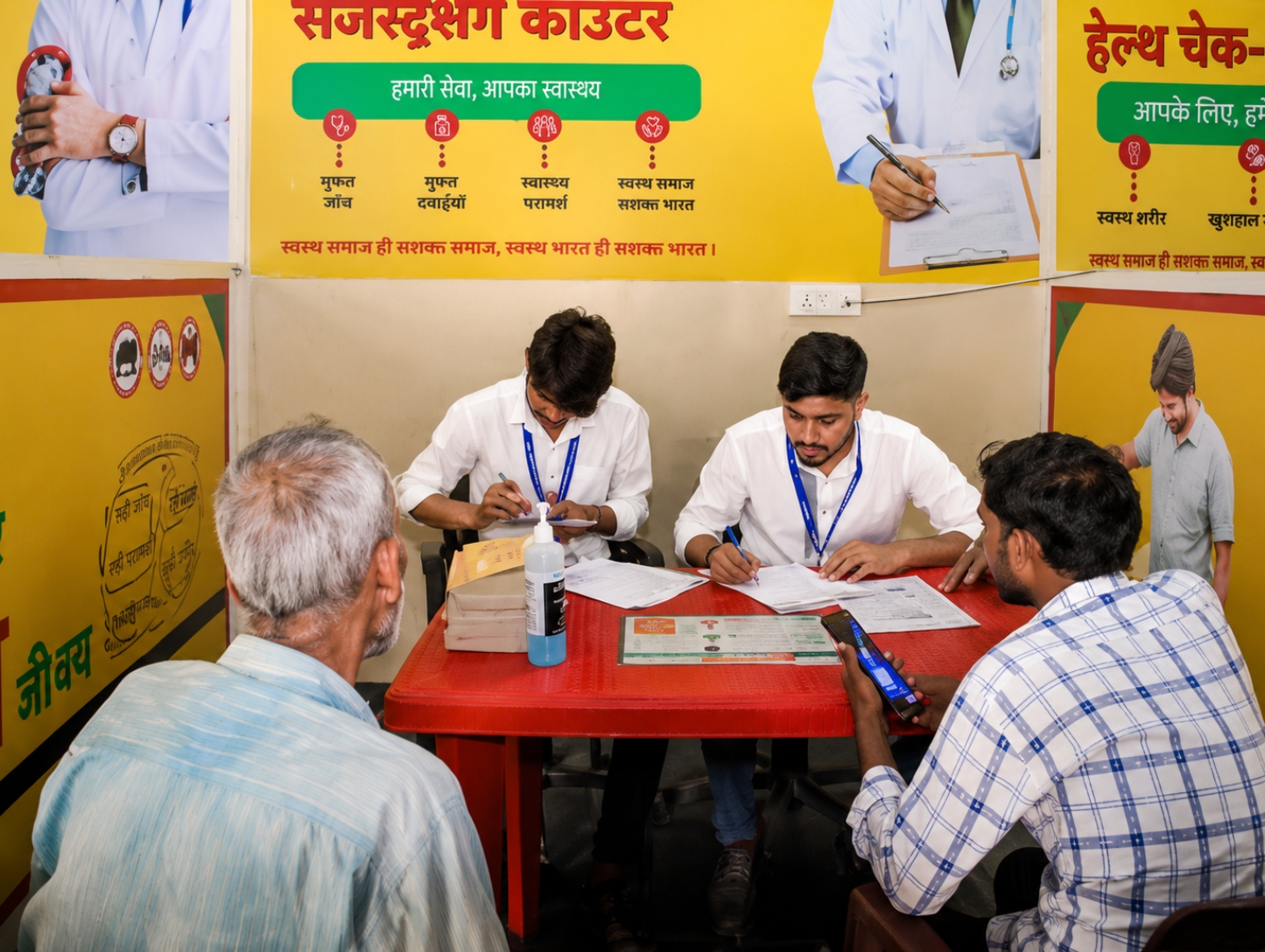
Social Security Registration
Drivers are assisted with registration for e-Shram (Unorganised Worker ID) and enrolment in social security and insurance schemes such as Ayushman Bharat, PM Sadak Suraksha Yojana, and other government welfare programmes.
Upskilling
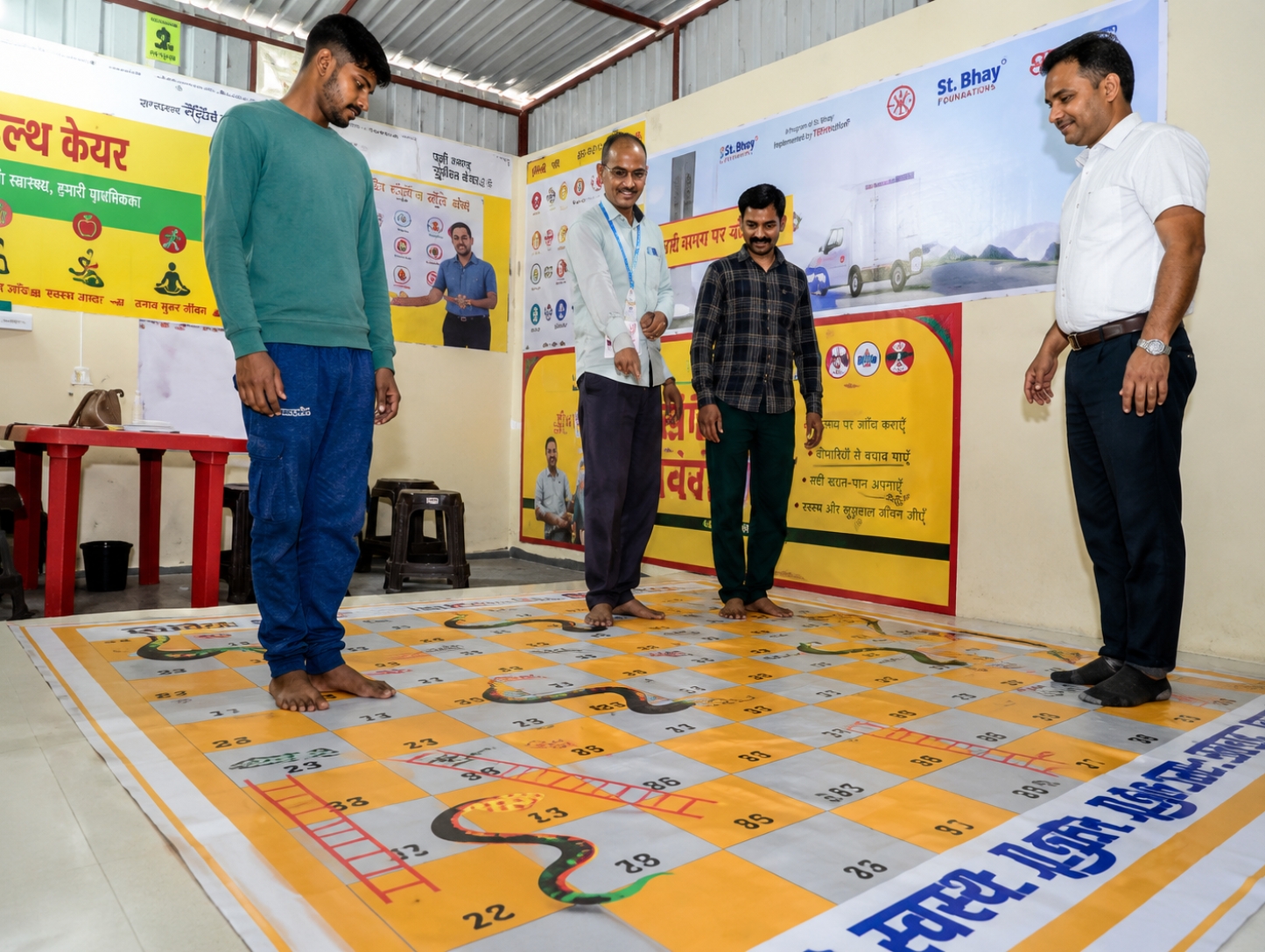
Behavioural Change for Road Safety
Drivers receive guidance on Suksham (micro) Yoga, road safety and ethics, legal compliance, access to the Driver Handbook, and digital inclusion.
Digital — Abhay Tech Portal
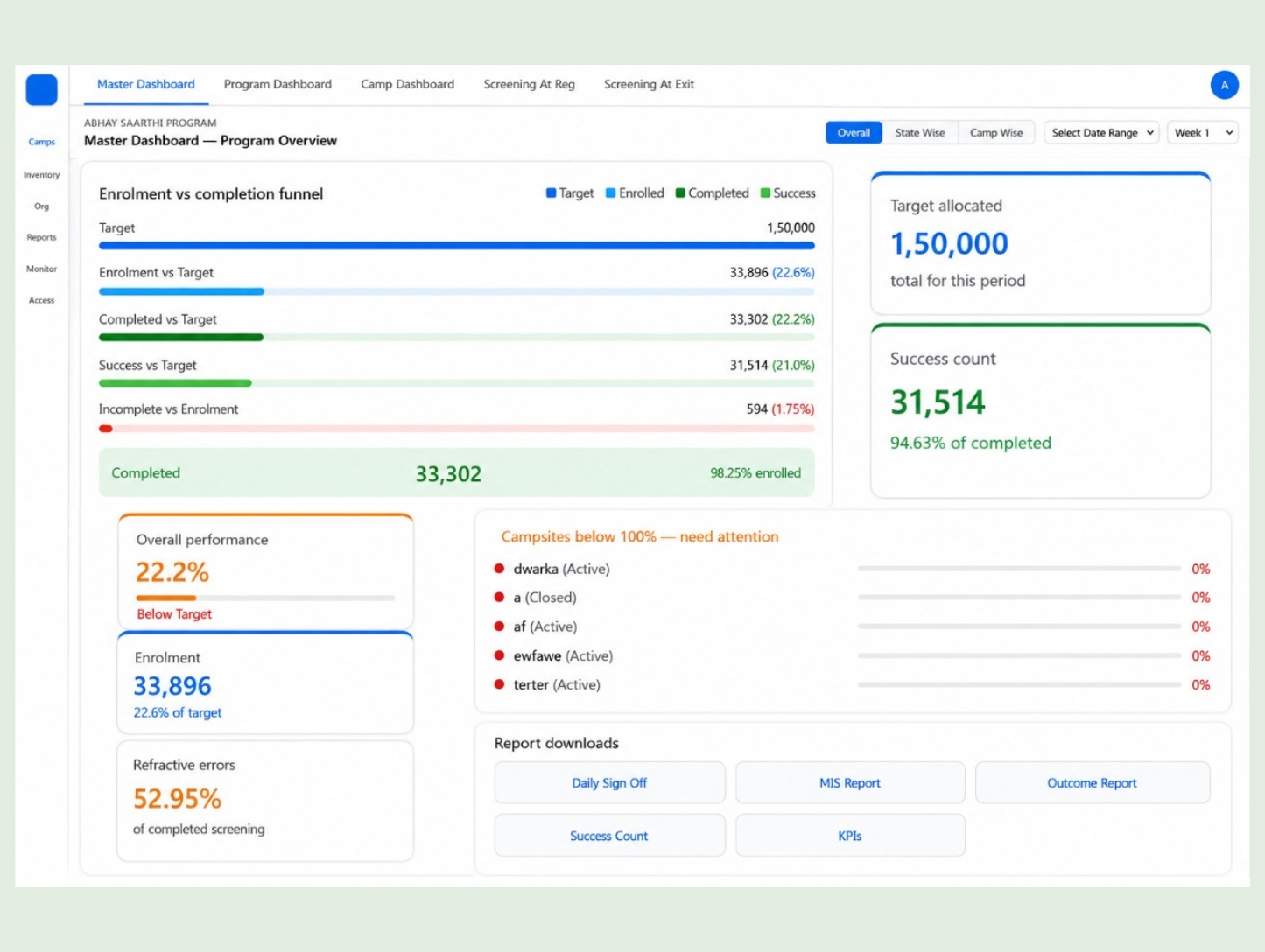
Abhay Tech Portal
A dedicated digital platform provides each driver with a unique Abhay ID, capturing health and screening parameters from the Abhay Health Camp to enable future follow-ups and support.
Wellness — Abhay Aasanas
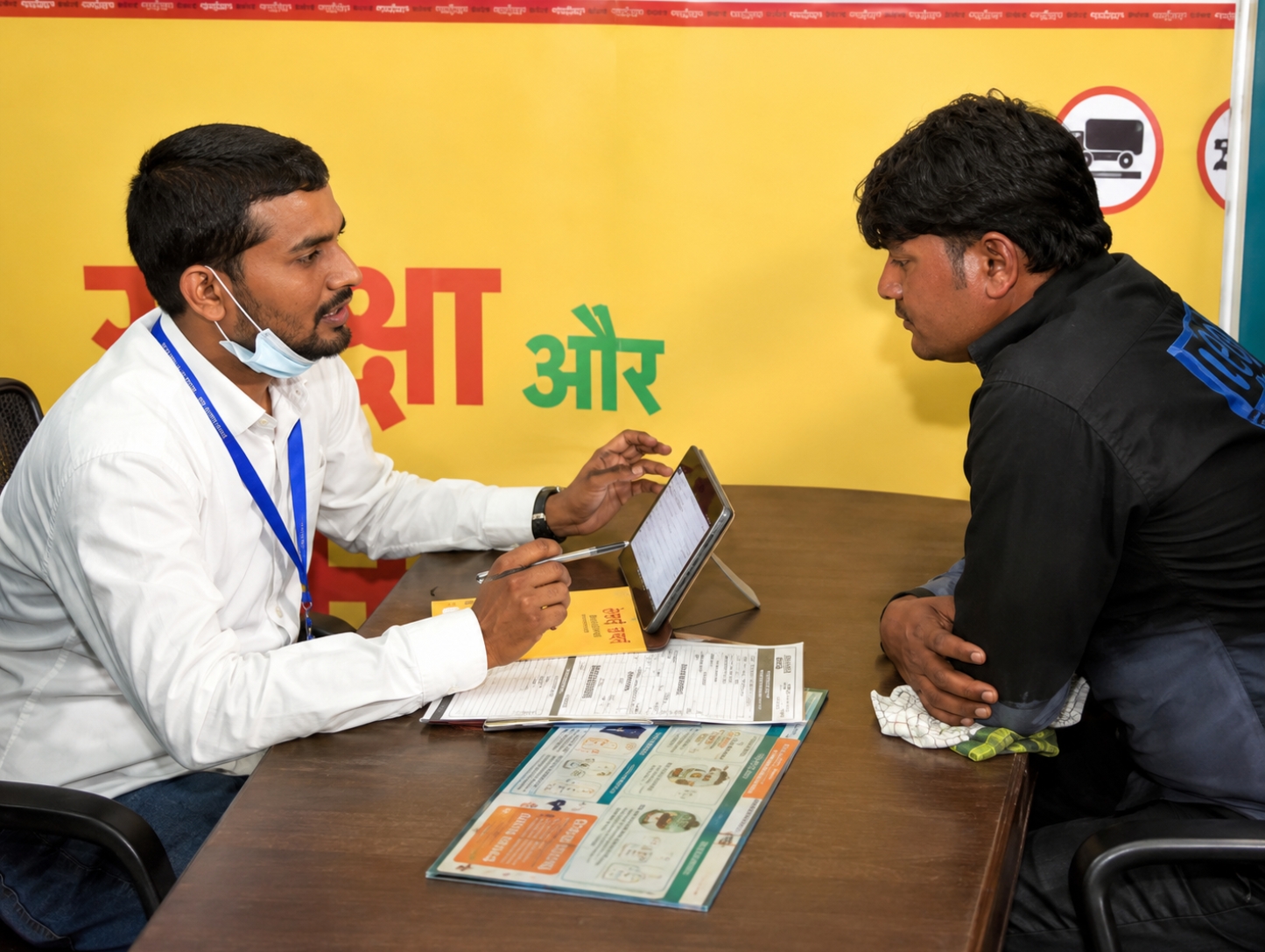
Saarthi Saathi App for Drivers
One of-its-kind national digital infrastructure designed for Truck Drivers, enabling access to essential services, tracking their health records, continuous learning, and sustained engagement with the Abhay Saarthi ecosystem.
ABHAY ECOSYSTEM
Abhay Saarthi — health camp not one time
intervention
but the beginning of a new journey

Abhay Health Card
Abhay health card provides gateway for drivers to stay connected with Abhay Saarthi. Active links are provided for follow-ups and seek support as part of Abhay Saarthi Ecosystem.

Tele-Medicine
Any Truck Driver after visiting the Abhay Health Camp can book a slot for tele-consultation with the help of Abhay Health Card.

Saarthi Saathi App
Drivers App is one its kind intervention setting the pathway for a national level digital infrastructure for Truck Drivers. The App is a digital companion of the drivers for continuous learning to guide them to nearest facilities.
Abhay Ecosystem — Health Card, Telemedicine, Saarthi Saathi App
Abhay Saarthi — health camp not one time
intervention but beginning of a new journey
Abhay health card provides gateway for drivers to stay connected with Abhay Saarthi. Active links are provided for follow-ups and seek support as part of Abhay Saarthi Ecosystem.
Health & WellnessAny truck driver after visiting the Abhay Health Camp can book a slot for tele-consultation with the help of Abhay Health Card.
Remote ConsultationDrivers App is one its kind intervention setting the pathway for a national level digital infrastructure for Truck drivers. The App is a digital companion of the drivers for continuous learning to guide them to nearest facilities.
Digital CompanionPerspectives from the Road
Thought leadership on India's Truck Driver crisis
Expert insights from IIT Delhi researchers and Foresight Foundation leadership — the
evidence base behind Project Abhay’s approach.
Recognition
Your CSR can move India forward
Abhay Saarthi offers industry partners a rare convergence of government
backing, institutional credibility, execution certainty, and measurable
impact — all within a single, compliant CSR partnership.
What CSR Partnership Delivers
Investment Leverage
A multi-faceted outcome driven model aligned with core CSR priority areas like Healthcare, Sustainable Livelihoods, Social Inclusion, Digital Inclusion & thereby promoting road safety to save lives.
Compliance & Governance
Complete CSR alignment, transparent utilisation and institutional accountability.
Reputational Association
National-level co-branding with a Government of India supported national level program.
Measurable Impact
Real-time dashboards, driver-level digital recorded outcome & credible impact measurement.
Strategic Alignment
This is not just a CSR partnership. Industries can associate for know-how, driver outreach, CSR or any other meaningful contribution to the Truck Driver community.
IIT Delhi · Foresight Foundation · MoRTH, Govt. of India
CSR Partners


New: White Paper — "India's Truck Drivers: The Health Crisis on Our Highways"
The most comprehensive study of Truck Driver health in India. Based on 50,000+ screenings across 6 states. Peer-reviewed. IIT Delhi-backed. Free to download.
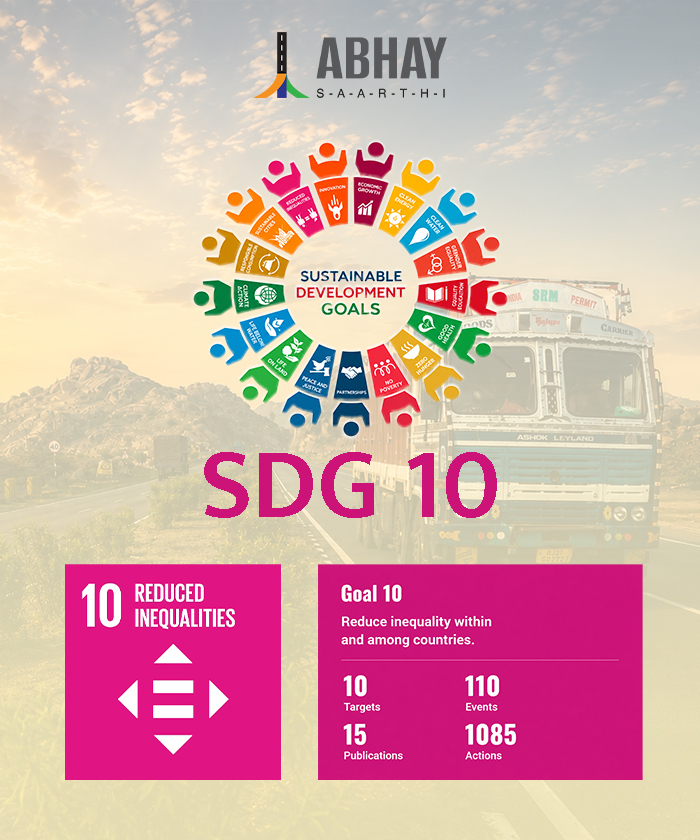
Sustainable Development Goals (SDG)
Project Abhay is aligned with the United Nations Sustainable Development Goals



In the news & recognition
Recognition
Backed by the best. Trusted by government.
MoRTH, Government of India
Govt support — the first of its kind program supported by MoRTH, GOI for driver’s well-being and road safety.
IIT Delhi — CRDT
Program designed and developed by the Centre for Rural Development & Technology (CRDT), IIT Delhi — India's premier institution
Foresight Foundation
Co-creator of the program with IIT Delhi &on-ground Implementation and program delivery, outreach ensuring outcome.
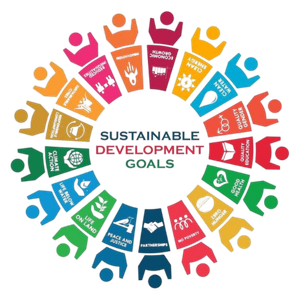
SDG Aligned — UN Framework
Program is uniquely aligned with SDGs 3, 8, 10, and 17 — good health, decent work, reduced inequality, and strong partnerships
Abhay Health Tips — हेल्थ टिप्स
Built for the road. Made to share.
Simple exercises and health habits designed specifically for Truck Drivers by IIT Delhi health experts. Share with your fellow drivers on WhatsApp.

Netra Vyayam (Eye Exercise)
Look far, then near. Do this every 30 minutes on long drives to rest your eyes.
Look at something far away, then something close — back and forth. Do this for 2 minutes every 30 minutes on long drives. It reduces eye fatigue and helps maintain clear vision behind the wheel.

Kamar Stretch
Shoulder and back stretch at every halt. Helps prevents the musculoskeletal pain that affects 60%+ of drivers.
At every halt, roll your shoulders and stretch your lower back. A simple 5-minute stretch prevents the musculoskeletal pain that affects more than 60% of Truck Drivers and is a leading cause of road accidents.

Paani Ki Aadat
Drink 8 glasses of water per day. Dehydration causes fatigue — a major cause of highway accidents.
8 glasses of water per day is not a goal — it is a safety requirement. Dehydration causes fatigue, slow reaction time, and impaired judgment. Keep water in the truck- not just chai.

Neend ki Zaroorat
7 hours of sleep is not a luxury — it is a road safety requirement. Fatigue kills more drivers than bad roads.
7 hours of sleep is not a luxury. Fatigue is one of the leading contributors to road accidents involving commercial drivers. Pull over when you feel drowsy. A 20-minute nap can save your life and the lives of everyone on the road.
Camps across India’s highway network
Project Abhay operates health camps at major truck halt points and highway corridors across India. Find one on your route.
Join the Movement
Every driver deserves clear vision.
Whether you’re a trucker looking for the nearest camp, a company looking for
partnership or a healthcare provider looking for an avenue to
contribute — Abhay Saarthi invitation is open for you !
